Videos
See it done, start to finish
Short videos filmed in the app on our demo businesses. Start with one of these, then pick the part you want to set up.
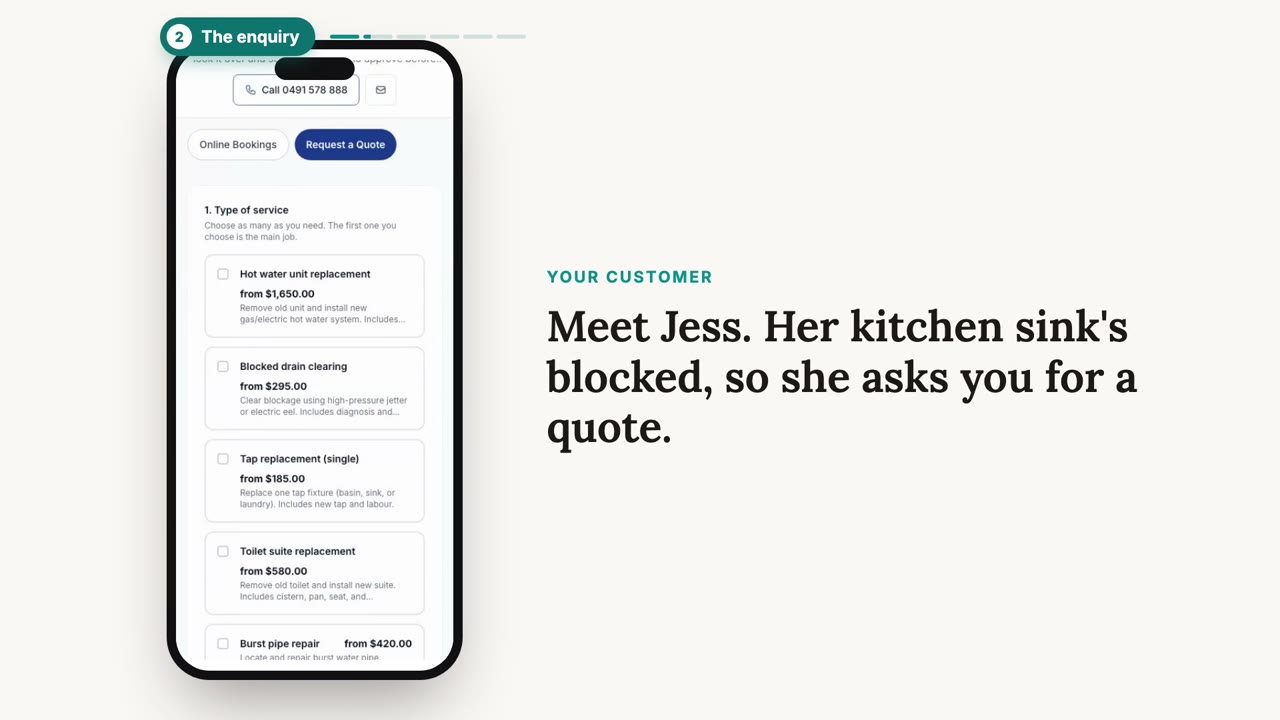
Getting started
Set up the basics
The first things every business sets up, whatever you do.
 38 sec
Step 1
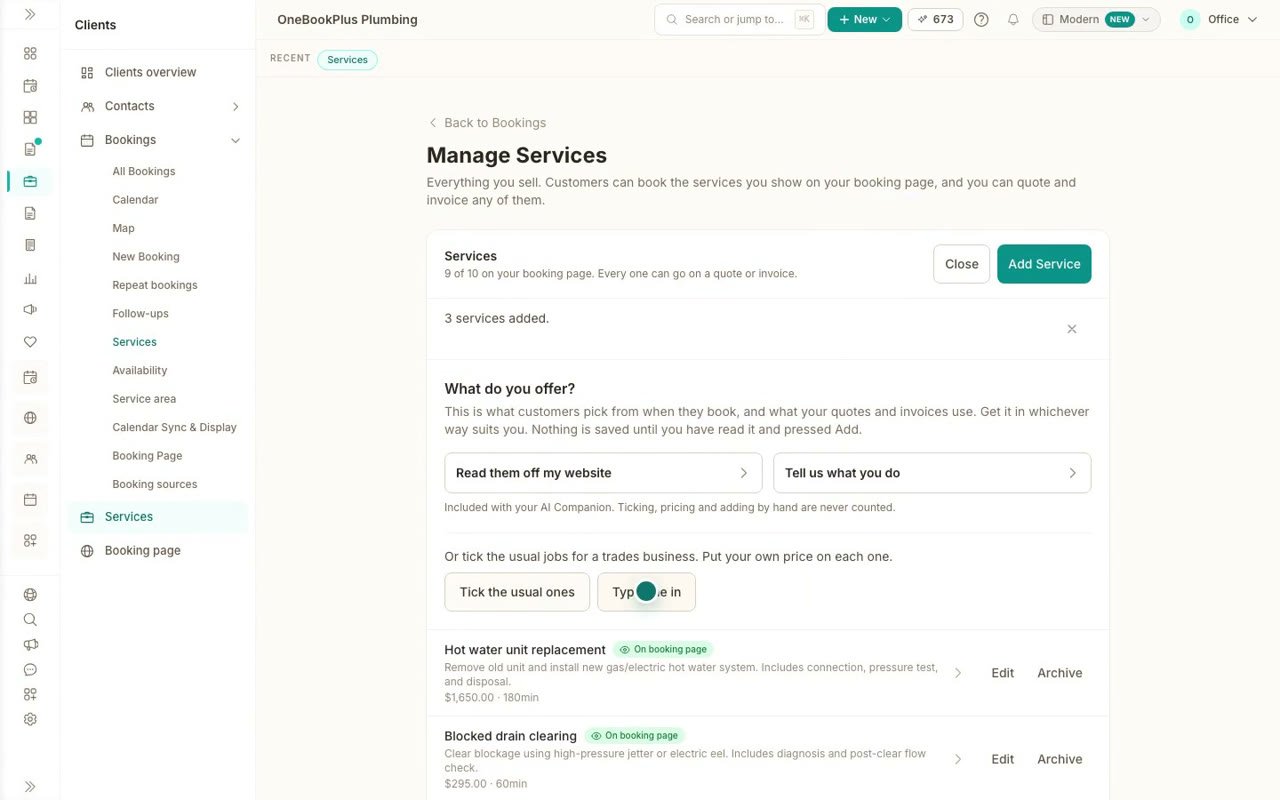
Create your services, every way
Add services from your website, from a sentence about what you do, from the usual jobs for your business, or one at a time. Nothing saves until you check it.
 32 sec
Step 2
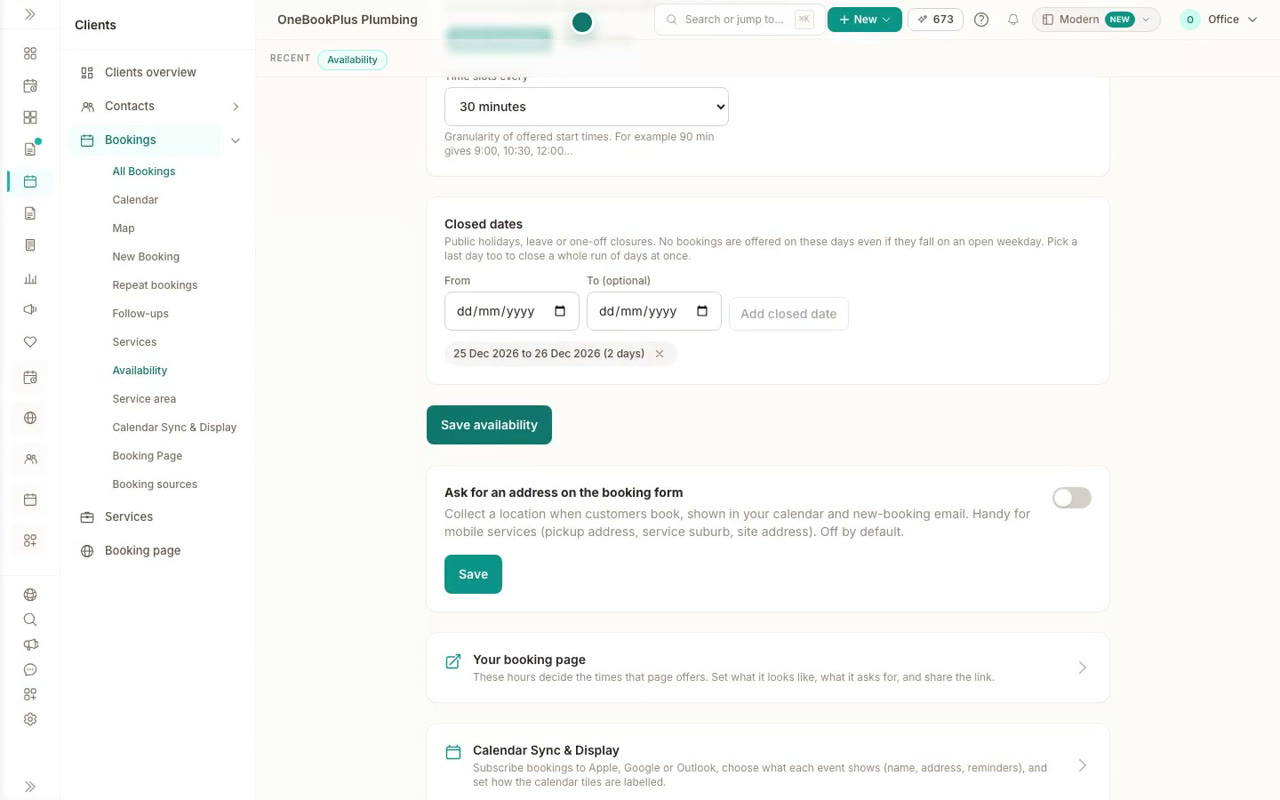
Set your hours and booking rules
Choose the days and hours customers can book, how much notice you need, a gap between bookings, start times and the days you are closed.
Your website
Your website, from switched on to published
Turn on My Site, let AI build the whole thing or start from your own details, then change it by typing on the page.
 37 sec
Step 1
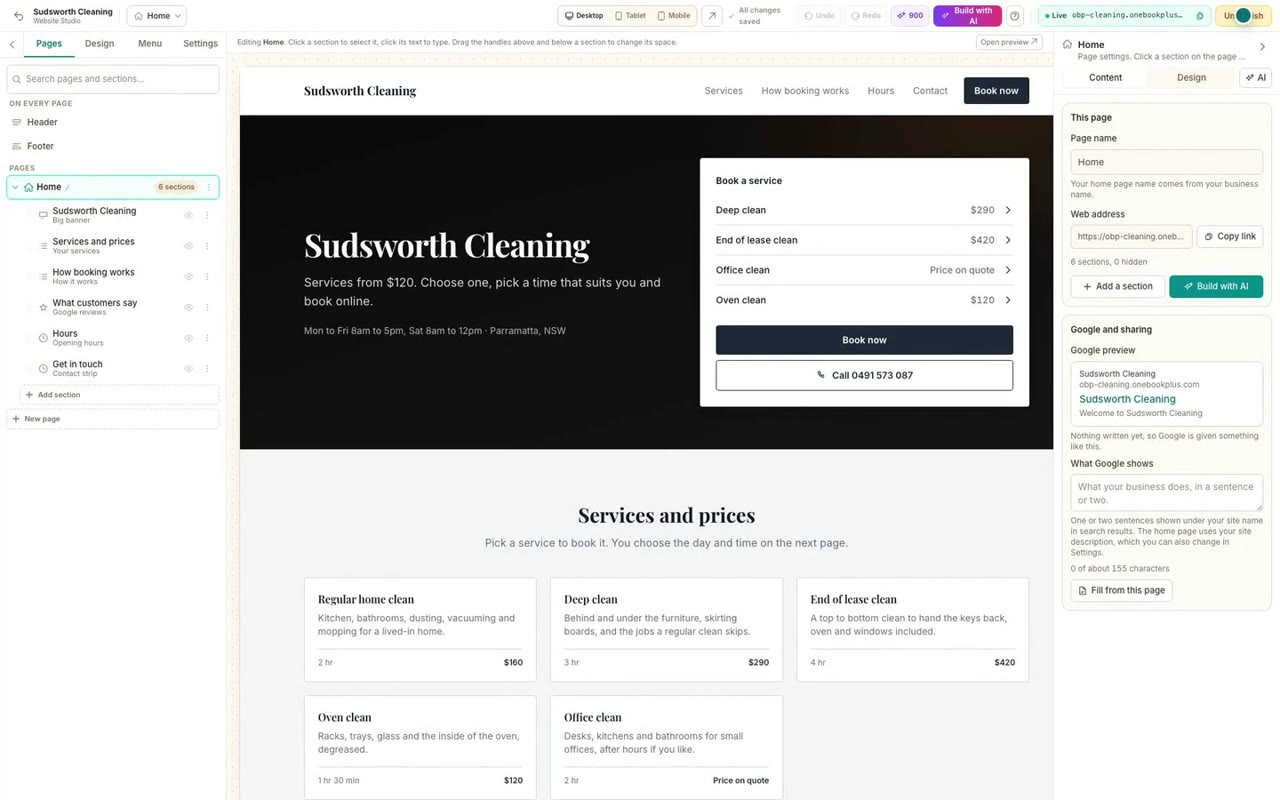
Turn on your website
Switch on My Site, start the home page from the services, hours and contact details already in your account, and publish it to your free web address.
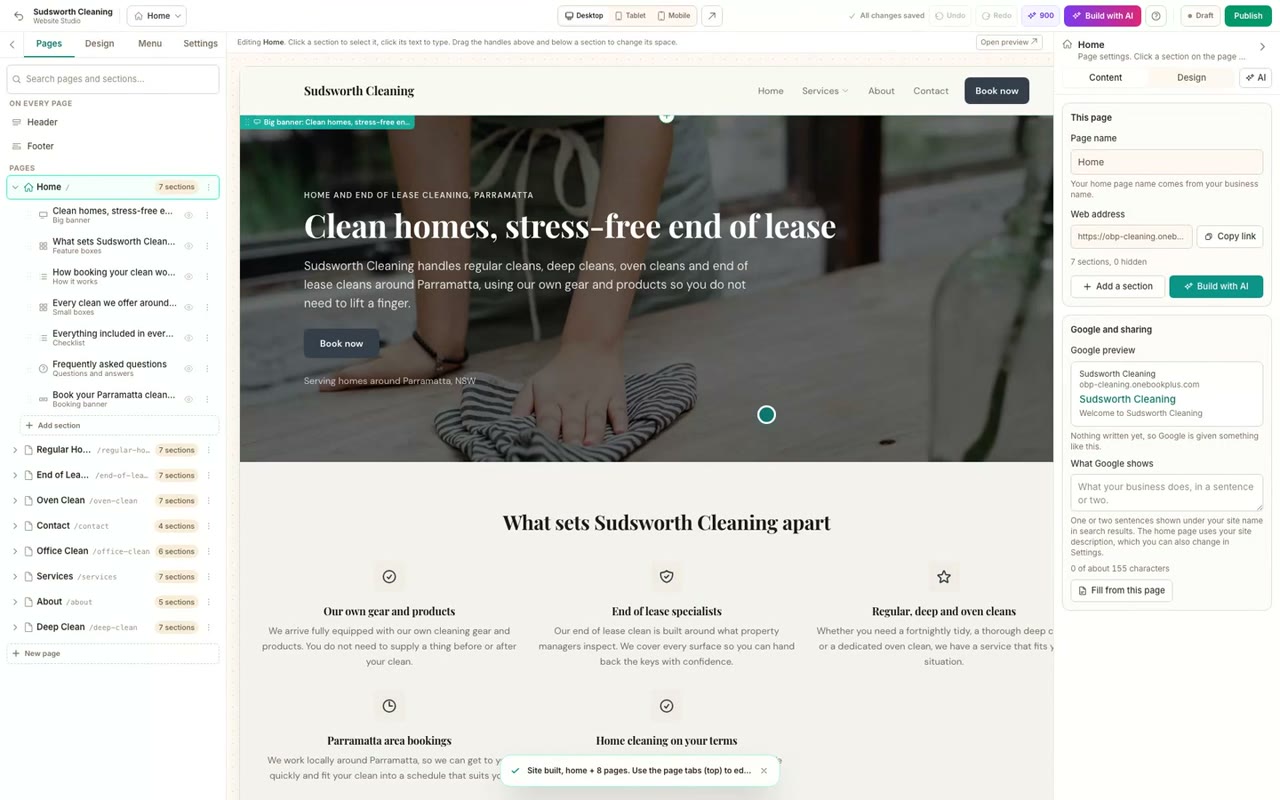 51 sec
Step 2
Build your website with AI
Tell the AI what your business does, choose what visitors should do, keep the pages you want and pick a look. Planning is free, and your first full build is included with your plan.
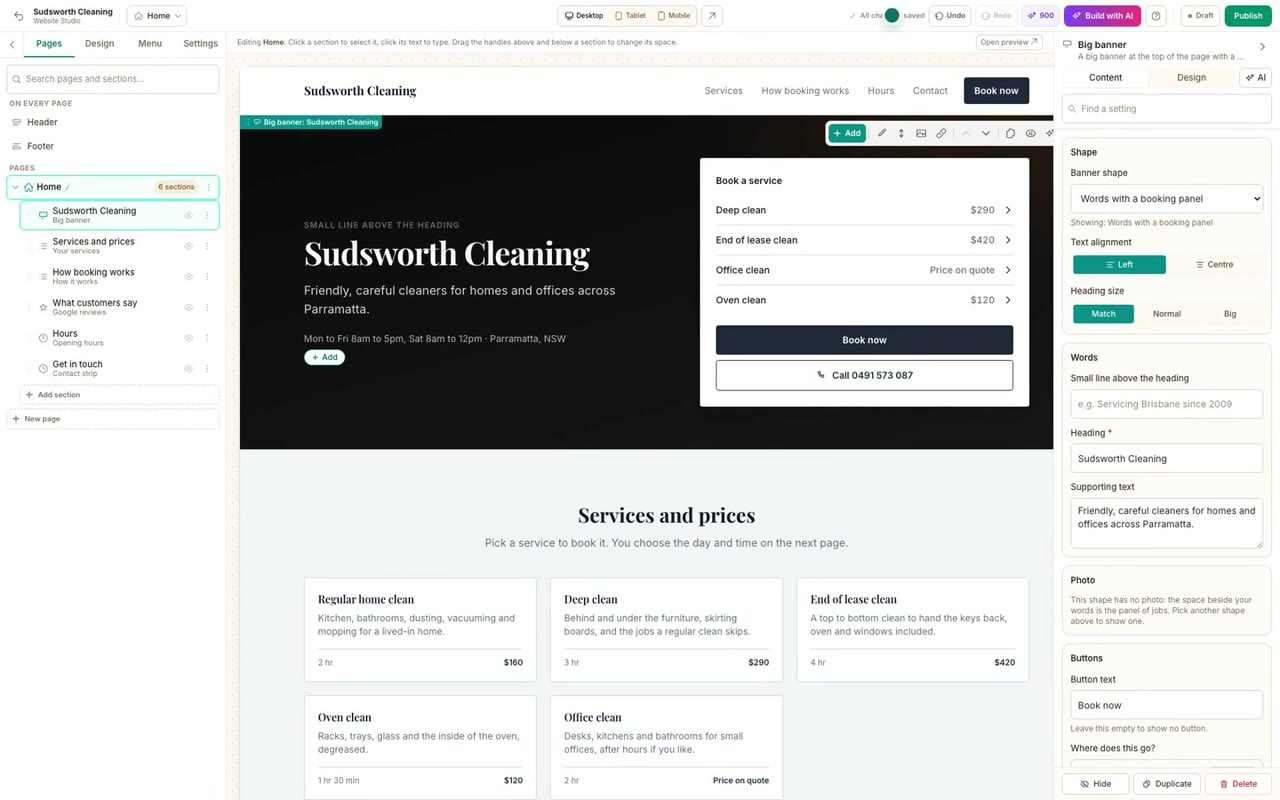 38 sec
Step 3
Edit your website and add pages
Change the words on any section by typing on the page, add sections from the gallery, make a new page, and publish your changes.
Booking pages
Booking pages, for any kind of business
Build a page from scratch, choose how people pick a time, take call backs or table bookings, lock a page, and share it everywhere.
 38 sec
Step 1
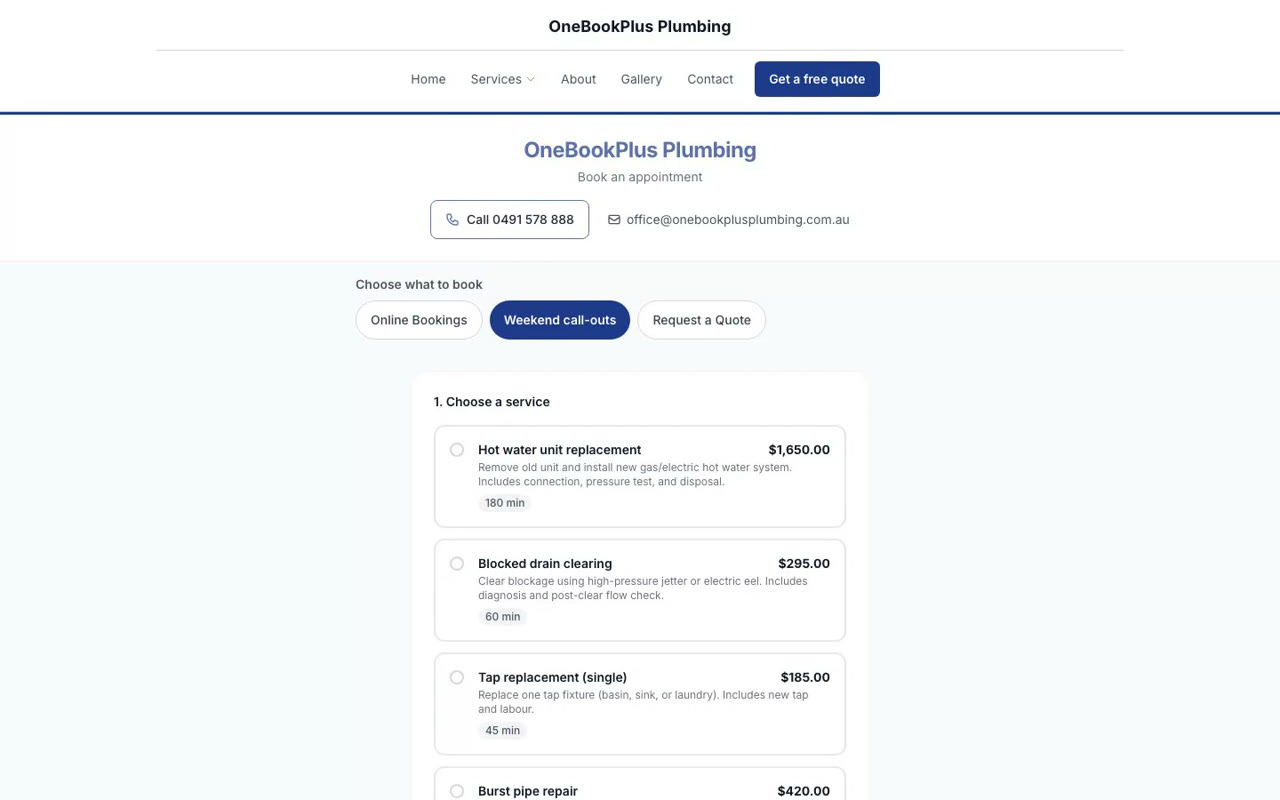
Build a booking page from scratch
Make a new booking page, choose what kind it is, pick its services and questions, and have it live with its own link.
 37 sec
Step 2
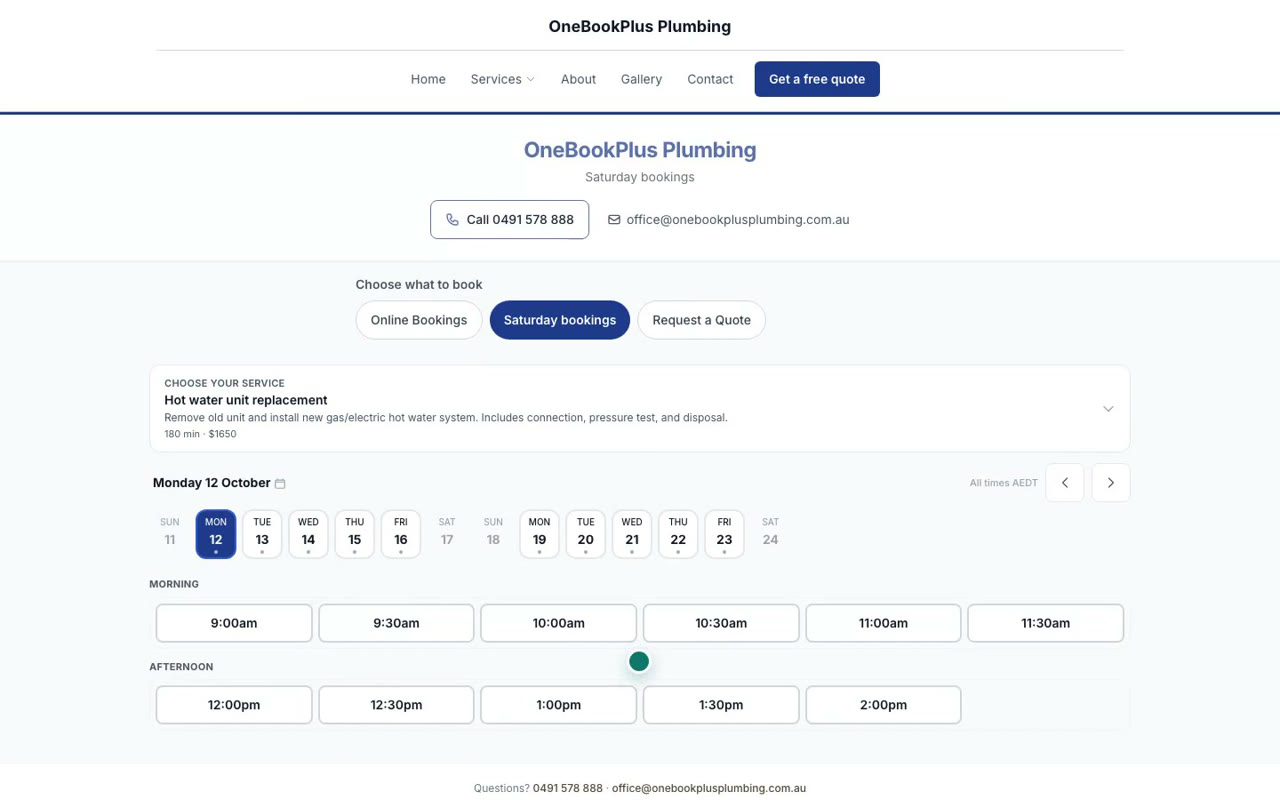
Choose how customers pick a time
Pick one of four layouts for an appointment page: a time board, a week at a glance, a simple list, or one question at a time.
 33 sec
Step 3
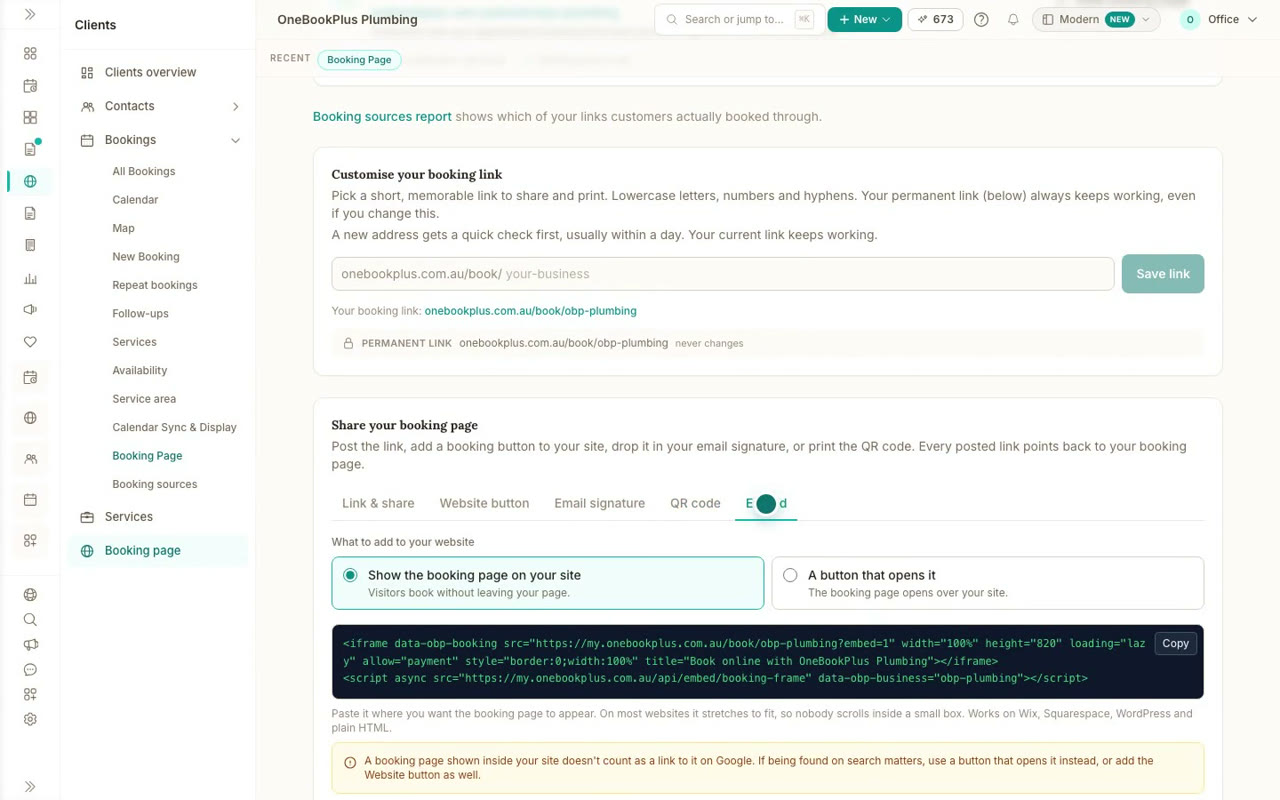
Share your booking page
Copy your booking link, add a button to your website, put it in your email signature, print the QR code, or embed the whole page.
 31 sec
Step 4
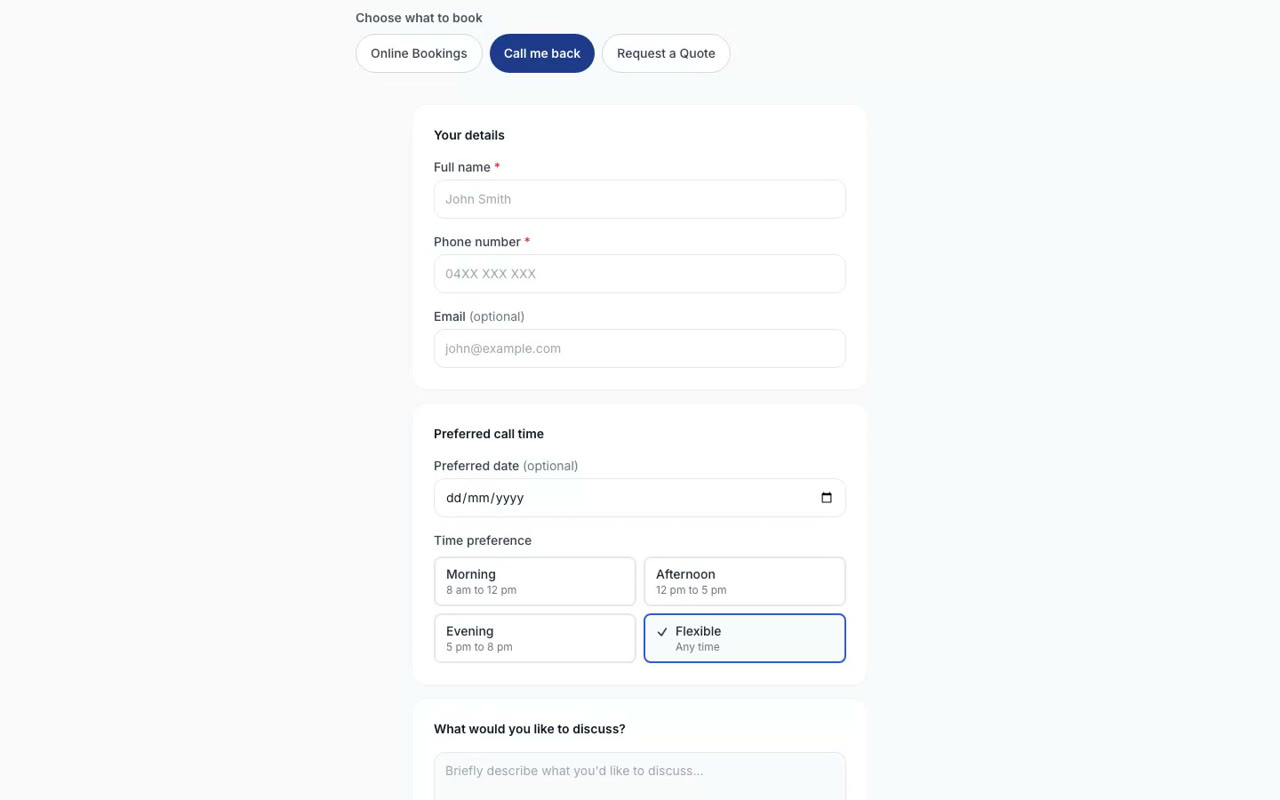
Call back pages
Make a page where customers leave their name, number, the best time to call and what it is about, with no calendar to fill in.
 31 sec
Step 5
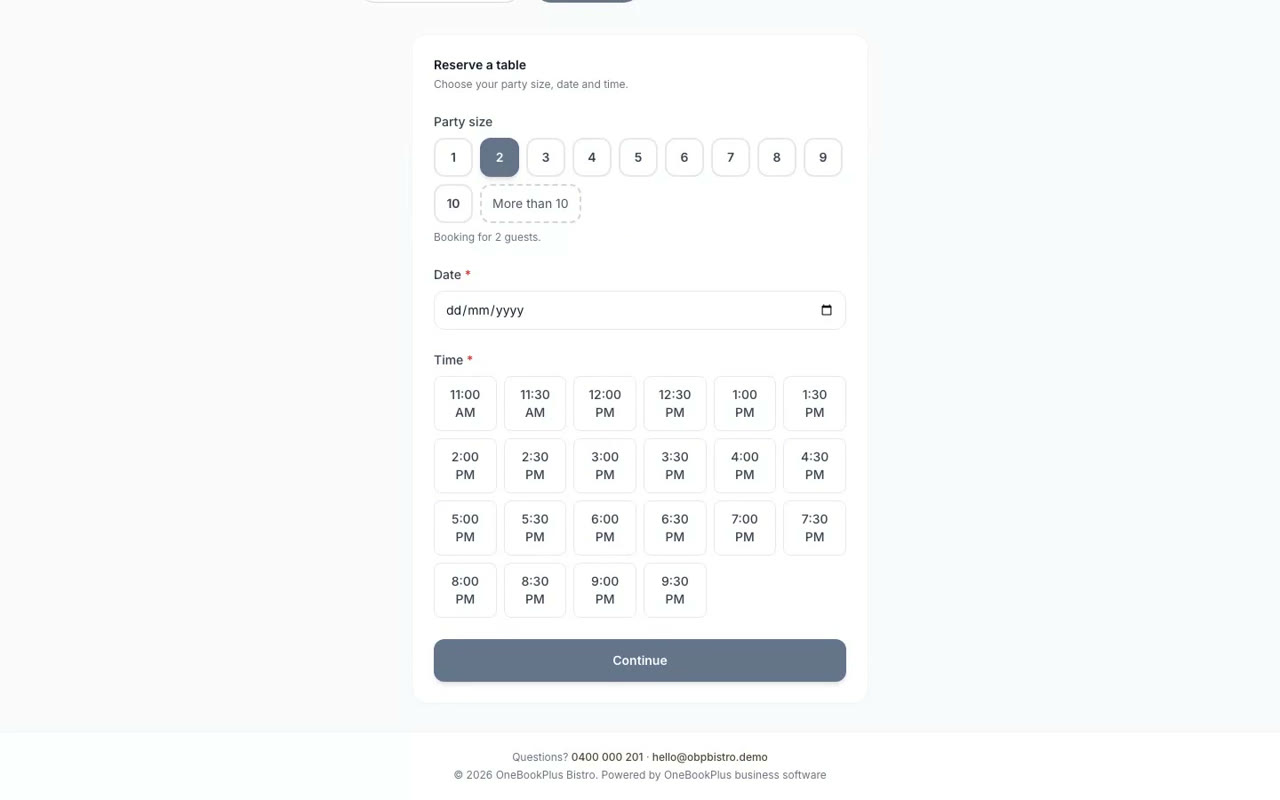
Table bookings
Set up table bookings for a restaurant or cafe: customers choose how many people, the day and the time.
 31 sec
Step 6
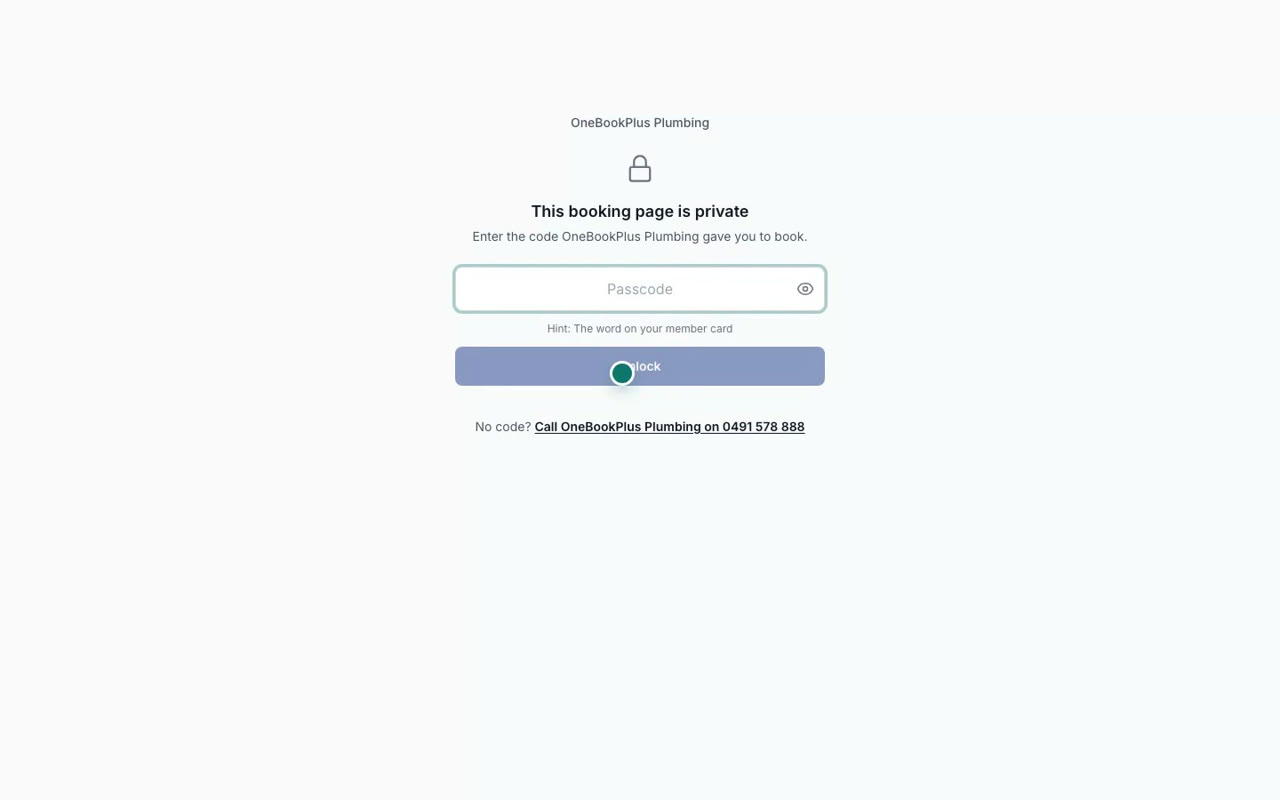
Lock a booking page with a passcode
Lock a booking page so only people with the passcode can book, with a reminder on the passcode screen. On Plus and above.
 36 sec
Step 7
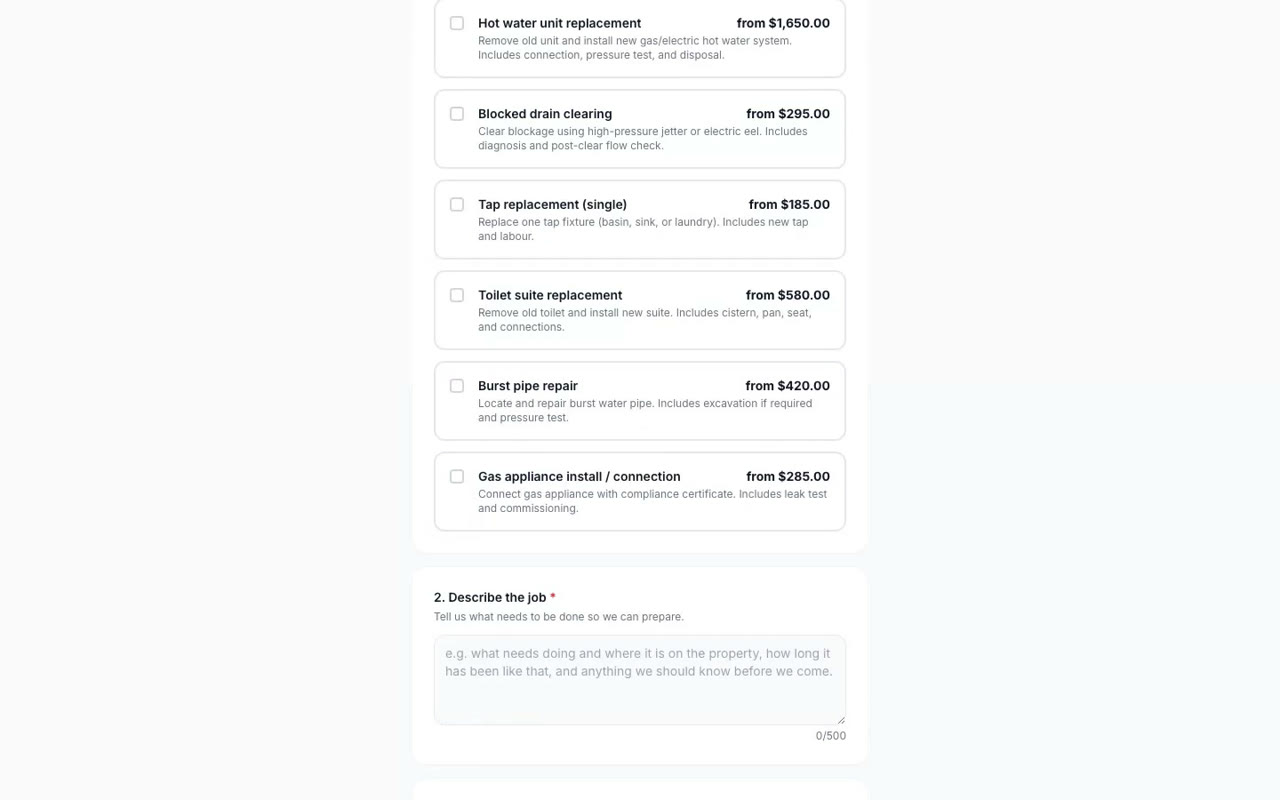
Set up your booking page
Make a booking page that takes job requests with the address and photos, switch on quote requests, and share the link.
Accounting
Your books, from a receipt to your BAS
Scan receipts and supplier bills into your books, see where the business stands, and check the GST you owe each quarter.
 43 sec
Step 1
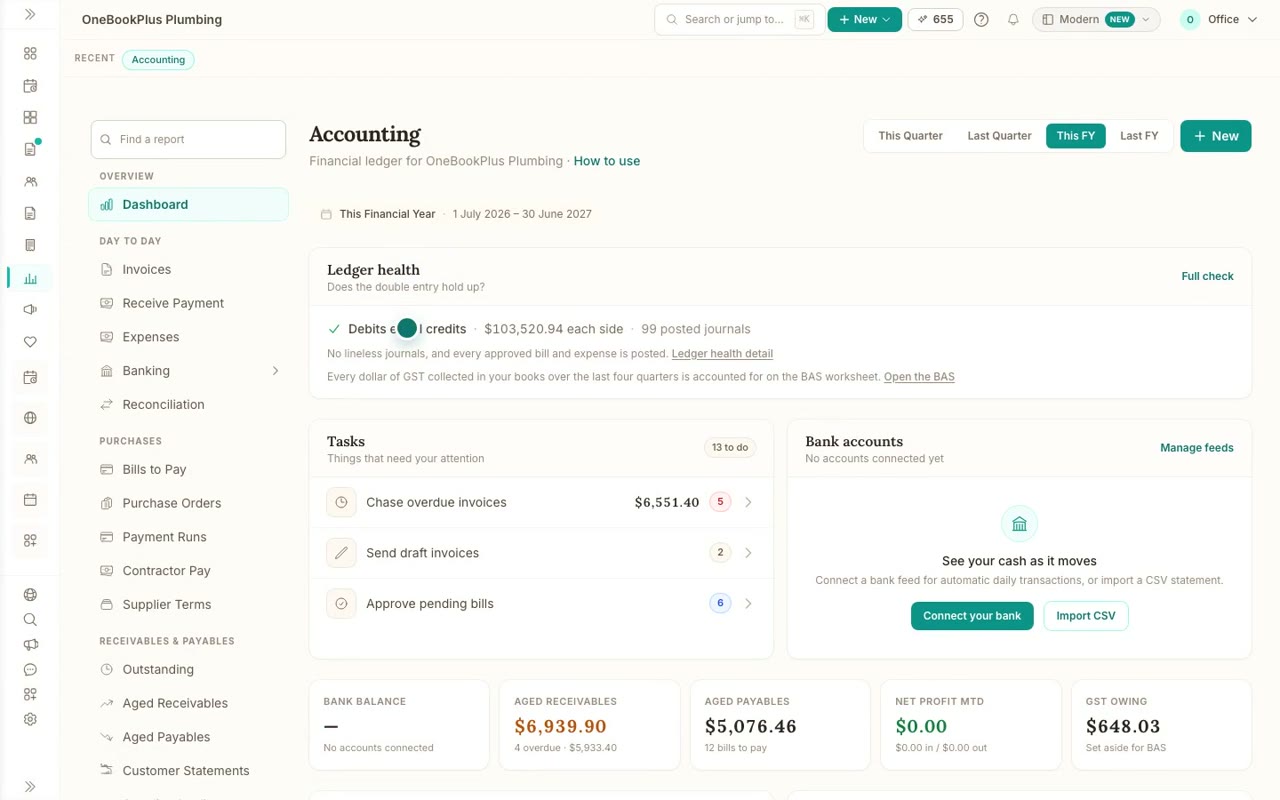
Your books at a glance
A tour of the Accounting dashboard: ledger health, the tasks that need you, what customers owe and what you owe, and adding anything from New.
 40 sec
Step 2
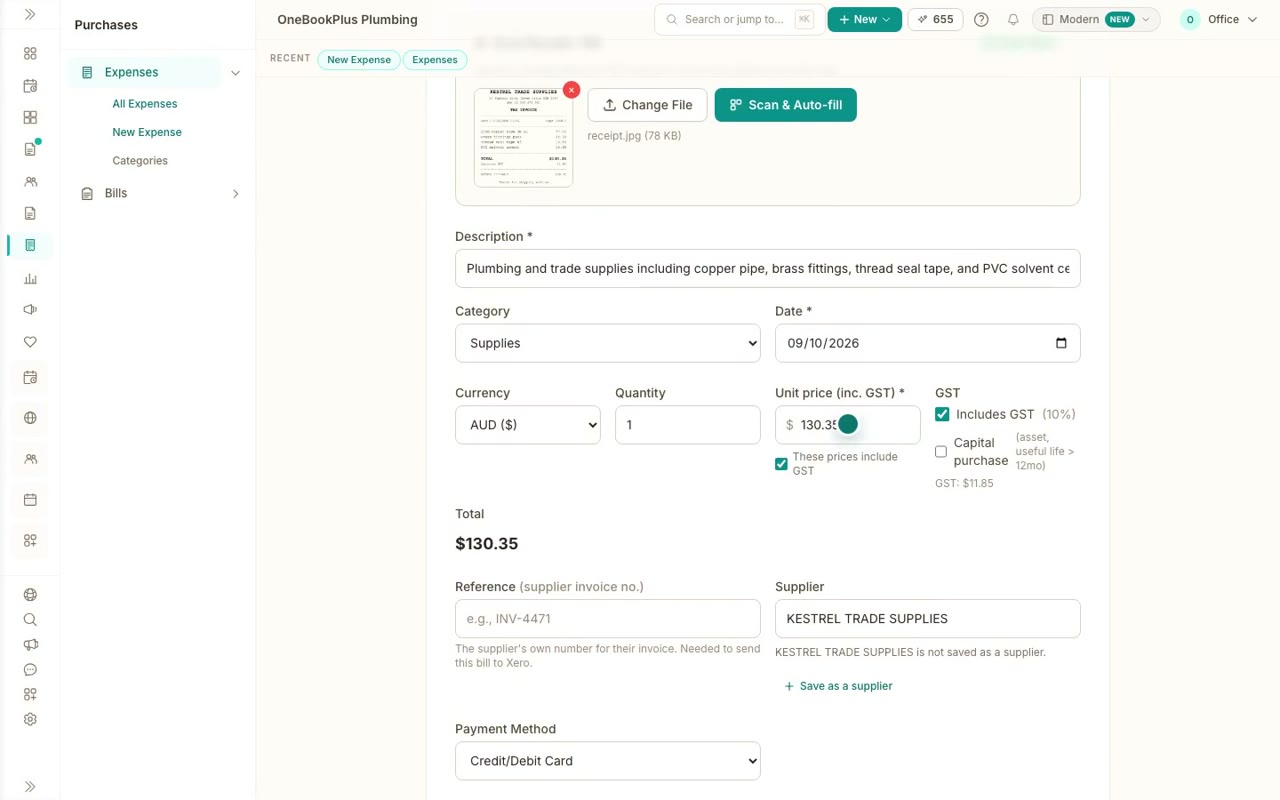
Record an expense from its receipt
Scan a receipt photo or PDF, check what it read, and create the expense as paid, with the receipt attached and the GST worked out of the total.
 43 sec
Step 3
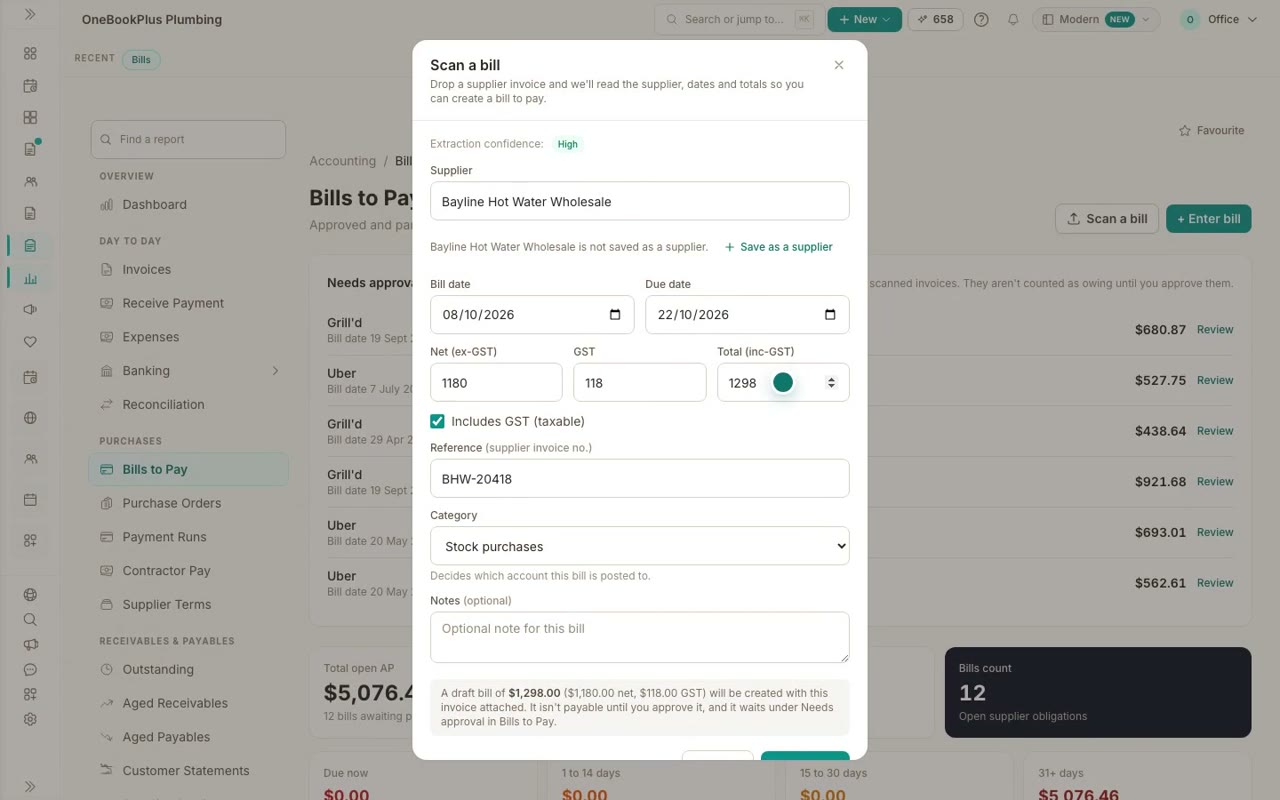
Scan a supplier bill and pay it
Scan a supplier's invoice into a bill, check what it read, approve it, and record the payment, so your books and your GST stay up to date.
 43 sec
Step 4
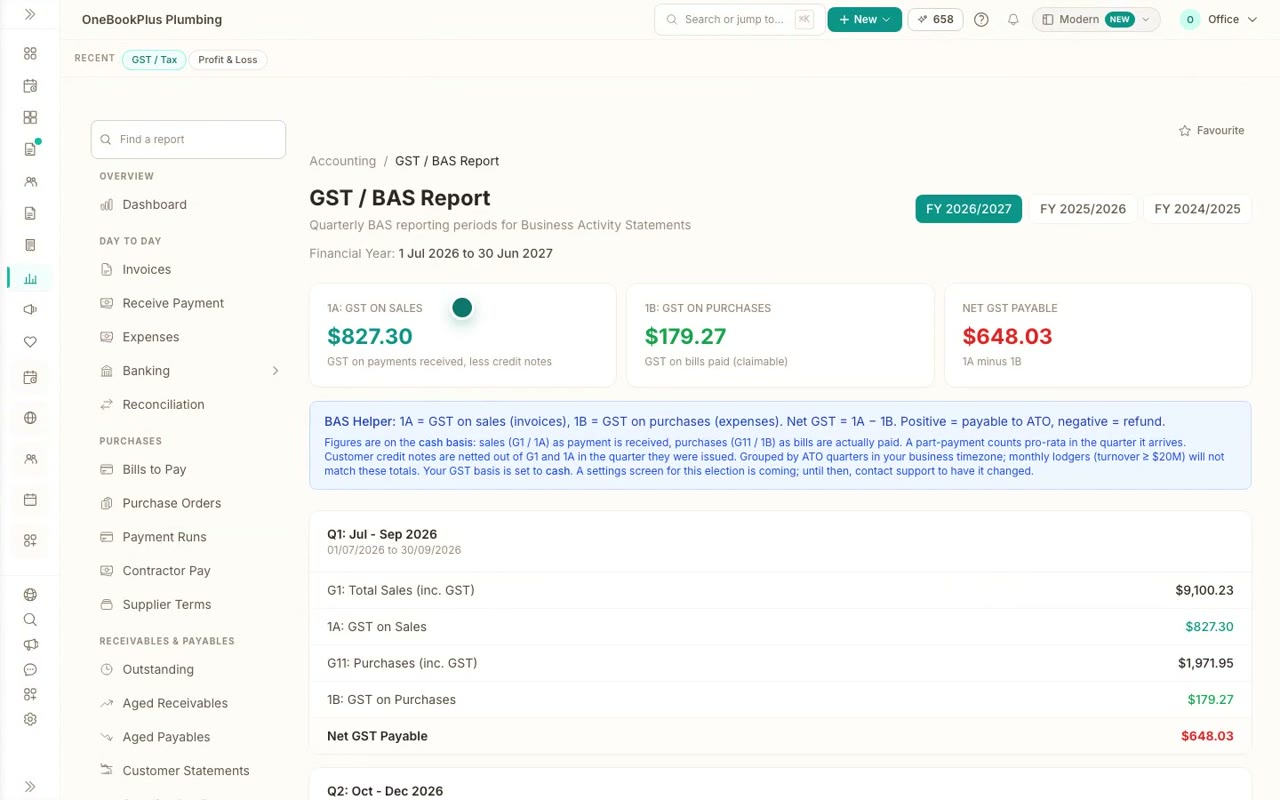
Profit and loss, and your GST for the BAS
Read your Profit and Loss by year and month, and your GST / BAS report: GST on sales, GST on purchases and what you owe, quarter by quarter.
For trades
Every step of a job, one at a time
In the order you would set things up and use them. Every video has its steps and a full transcript on its page.
 41 sec
Step 1
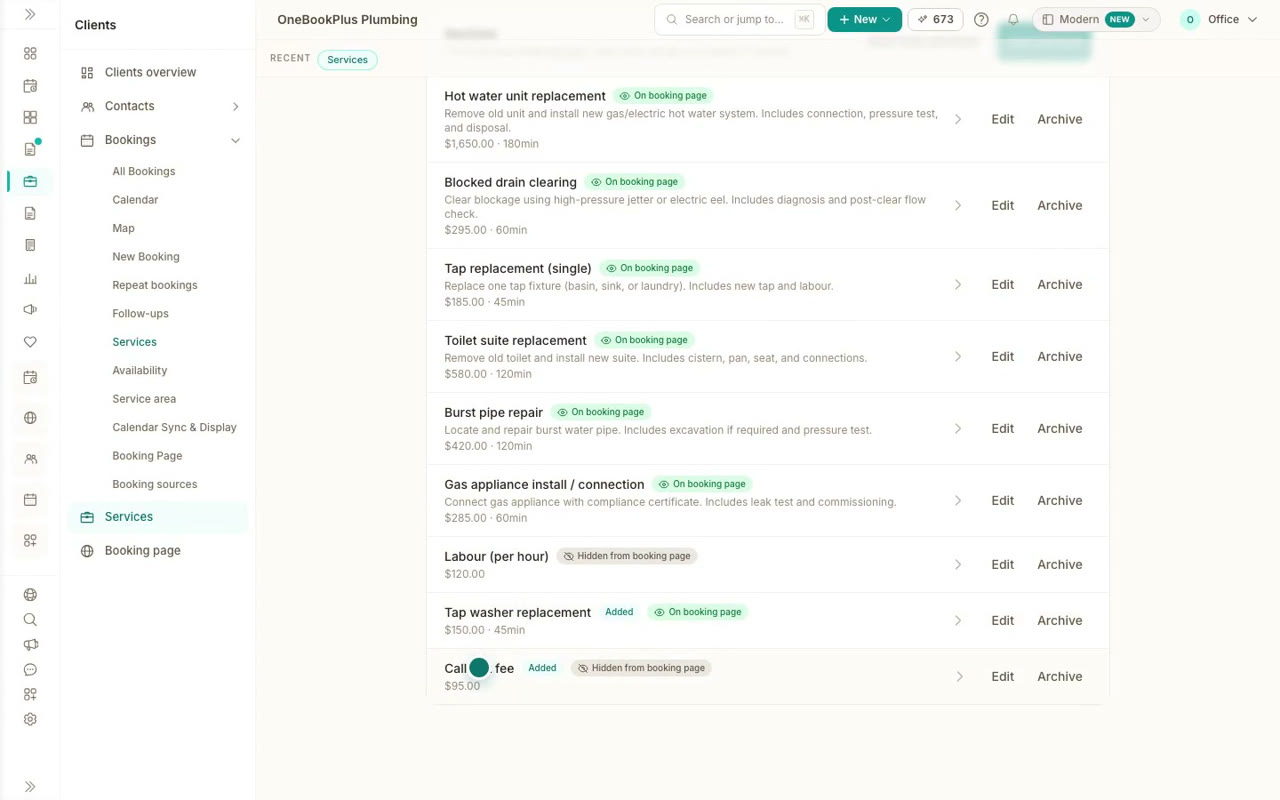
Add your services and prices
Add the work you do and what you charge once, and every price is ready for your booking page, your quotes and your invoices.
36 secStep 2
Set up your booking page
Make a booking page that takes job requests with the address and photos, switch on quote requests, and share the link.
 48 sec
Step 3
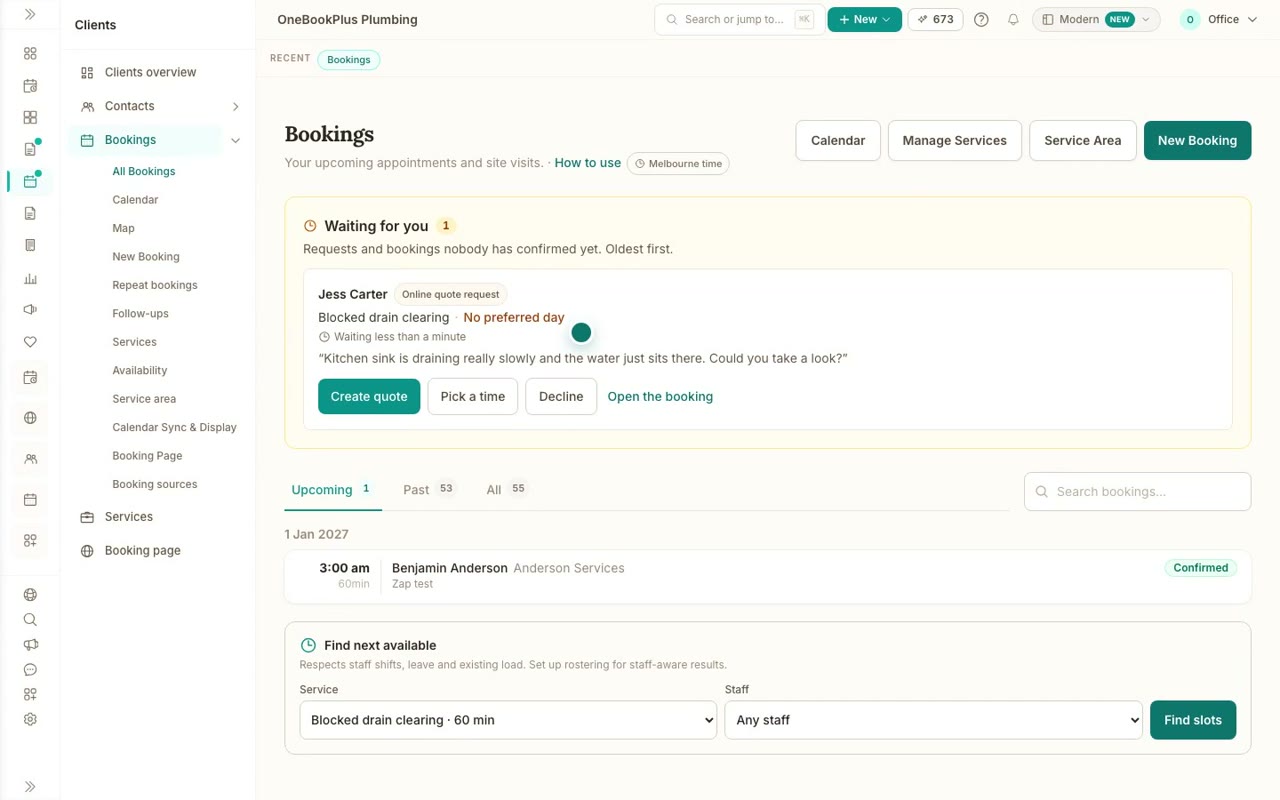
Quote requests from your booking page
See a customer ask for a quote from your booking page, with photos of the job, and turn the request into a draft quote.
 36 sec
Step 4
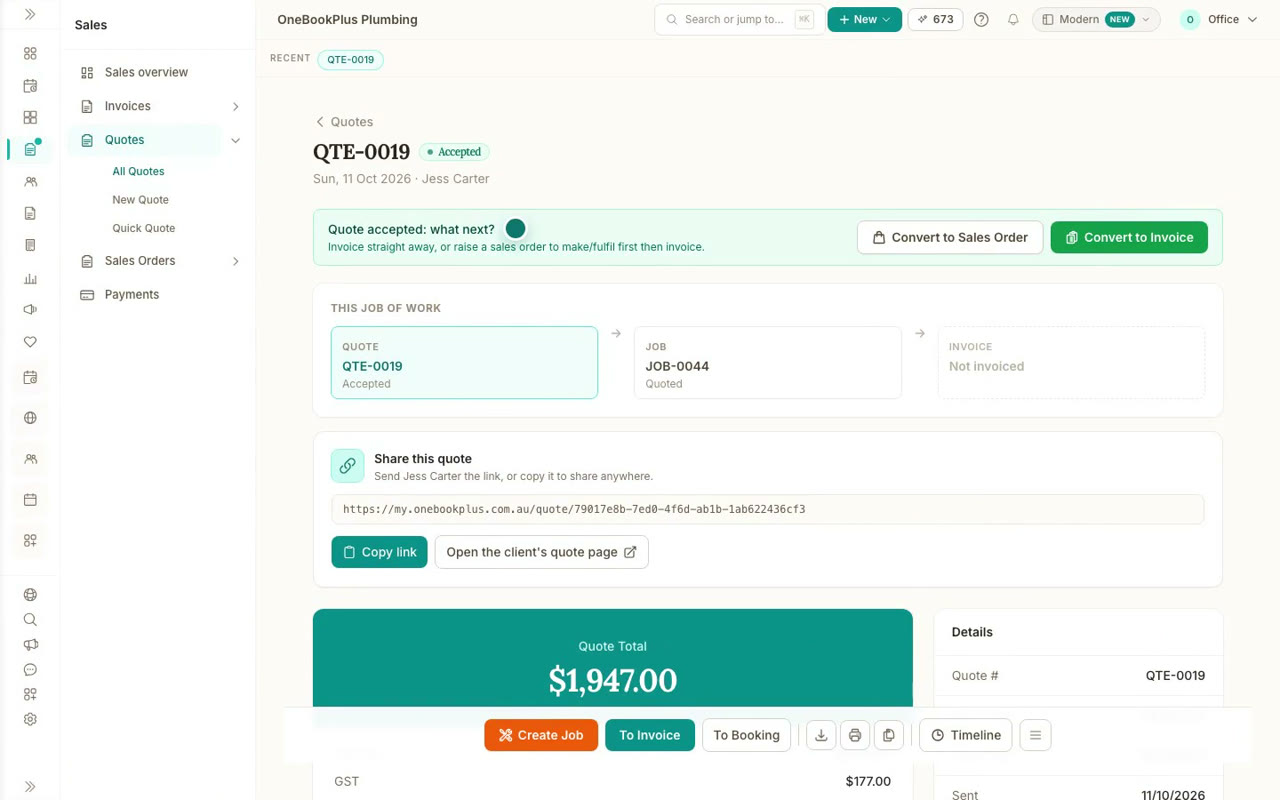
Send a quote and get it accepted
Build a quote from your saved prices, email it to your customer, and see them accept it online with one click.
 37 sec
Step 5
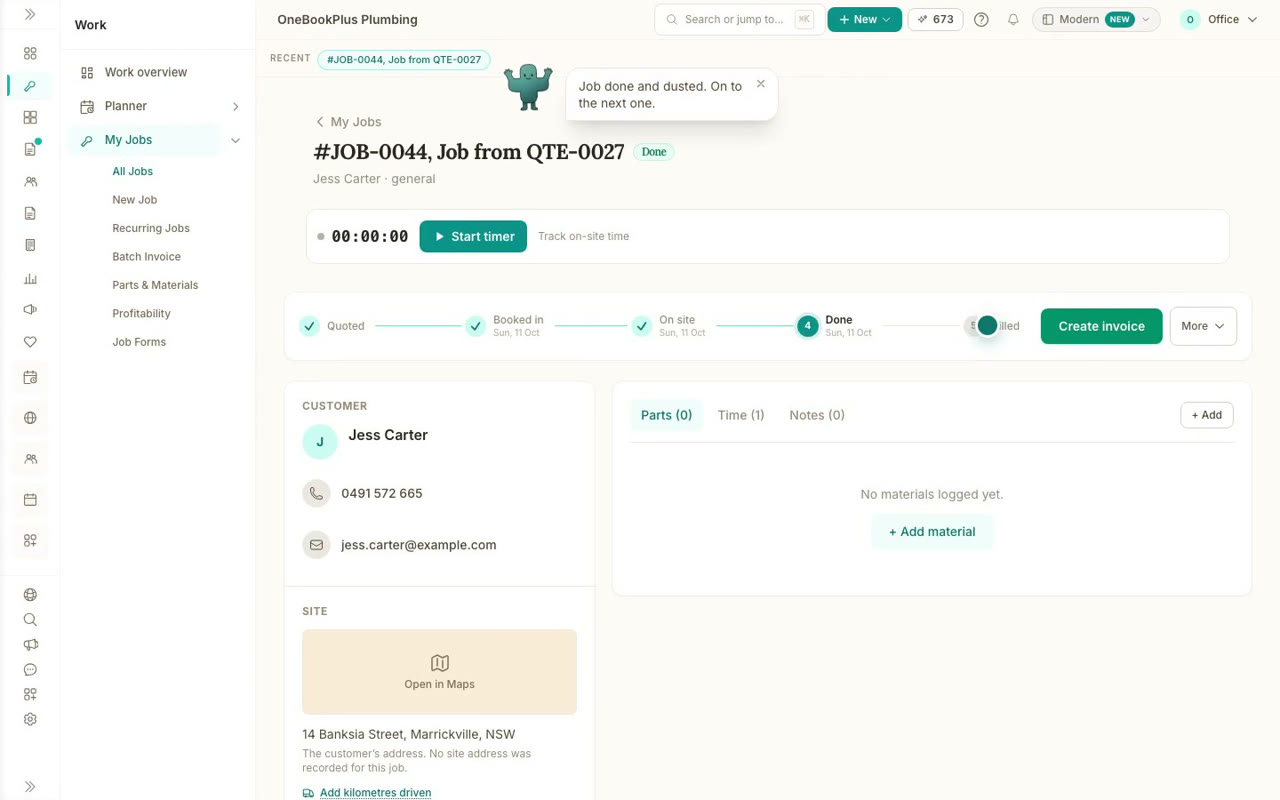
Schedule a job and run it on the day
Put an accepted job in the calendar, text your customer when you are on the way, and log your hours with the job timer.
 38 sec
Step 6
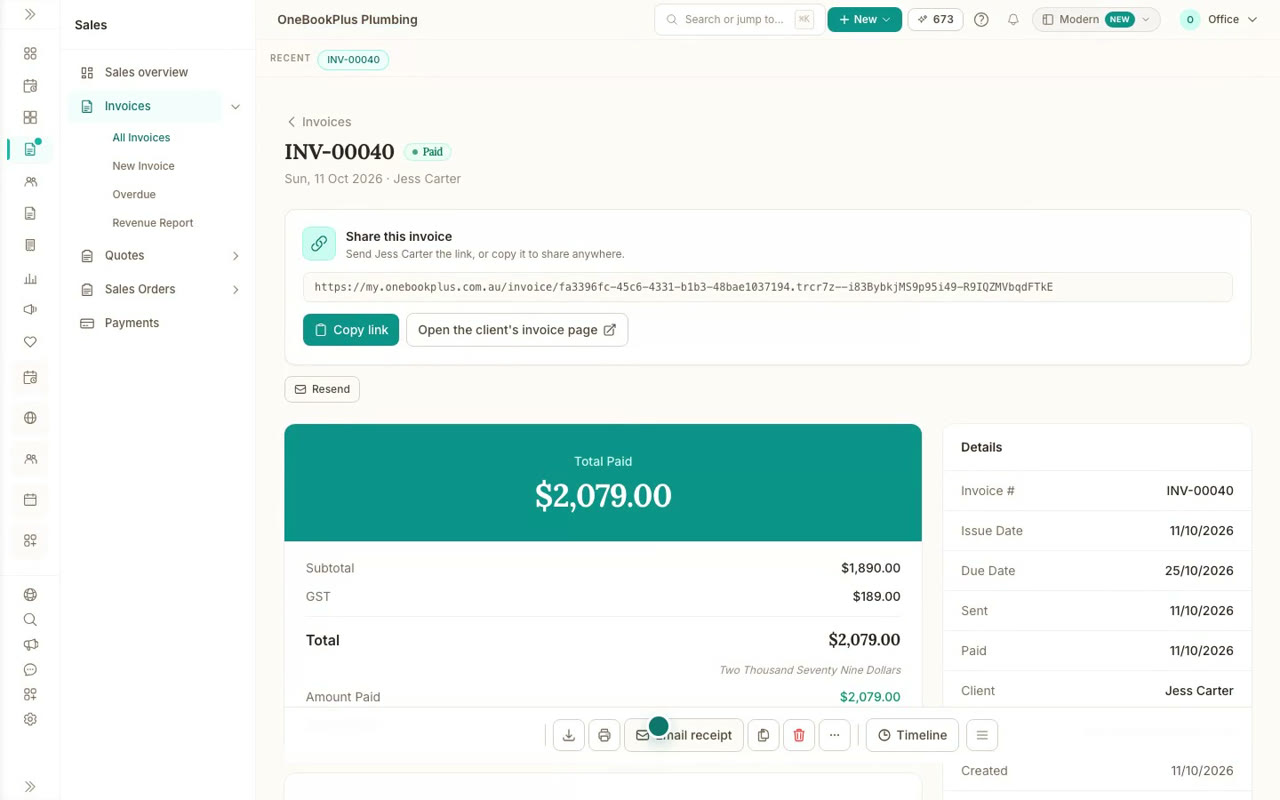
Invoice the job and get paid
Turn an accepted quote into an invoice without retyping a line, send it, and mark it paid when the money comes in.
 34 sec
Step 7
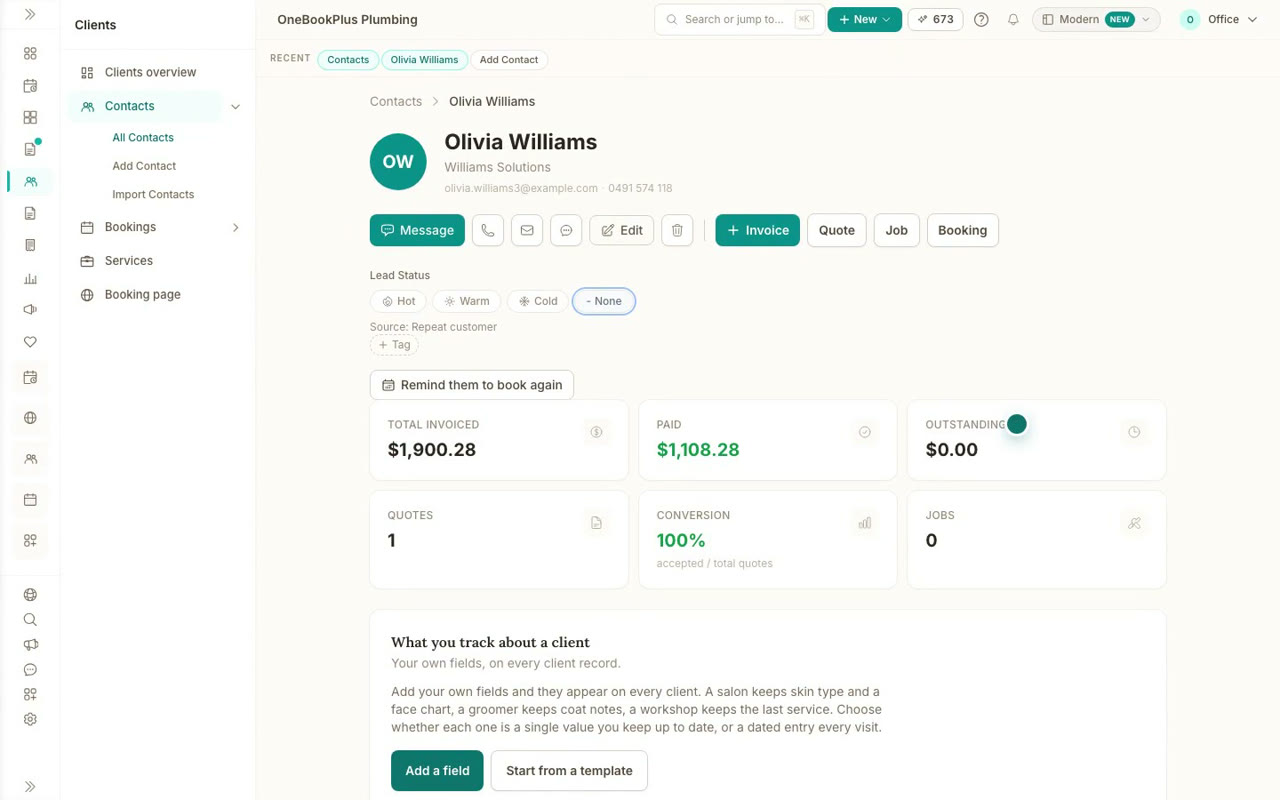
Your customers and their history
Add a customer, then see every quote, invoice and booking for them on one timeline, with what they have paid and what they owe.
Try it on your own business
Everything in these videos works on a free account. For written steps, the Help Centre has an article for each one.